Connect Pipedrive
Fill an EmailFig list from a Pipedrive filter, with unsubscribes going both ways and opens and clicks added to the person as notes.
Connect Pipedrive to fill an EmailFig list from a Pipedrive filter. Names, labels and the fields you choose come from Pipedrive, unsubscribes go both ways, and opens and clicks show up as notes on the person. You need to be a Pipedrive admin to connect.
Connect
- Go to Settings → Integrations → Pipedrive and click Connect Pipedrive.
- If asked to confirm it’s you, enter the code we email you (or your authenticator code).
- In Pipedrive, allow EmailFig access. You’re brought back to EmailFig, which takes a minute to set up.
If you see “Only a Pipedrive admin can connect EmailFig”, ask an admin in your Pipedrive company to connect instead. One Pipedrive company connects to one EmailFig account.
Add a sync pair
A sync pair links one Pipedrive people filter to one EmailFig list.
- On Settings → Integrations → Pipedrive, click Add sync pair.
- Choose the Pipedrive filter and the EmailFig list.
- Tick Everyone in this Pipedrive filter gave me permission to email them. and click Add sync pair.
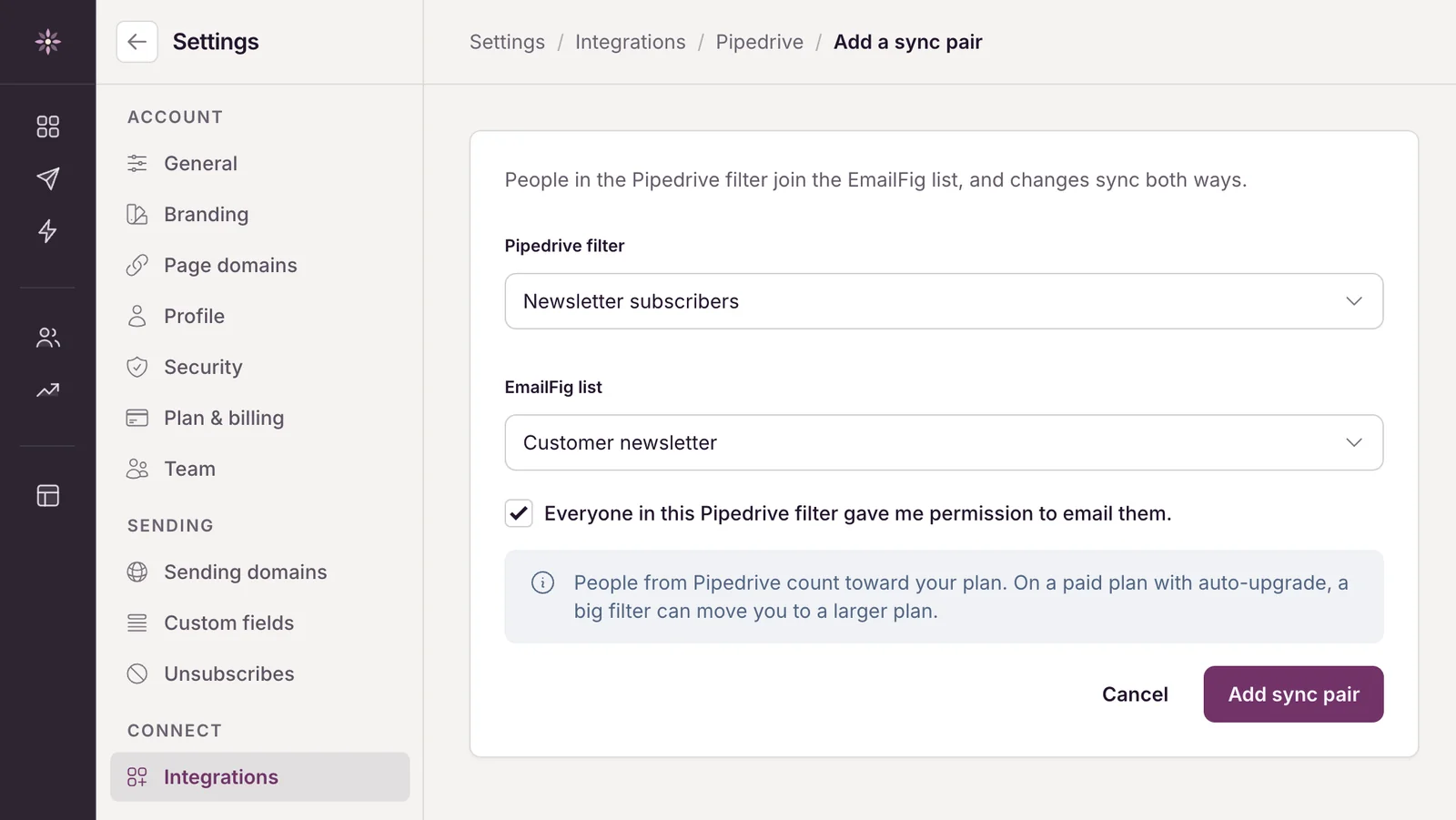
Everyone in the filter joins the list as subscribed, with no confirmation email, and they don’t start automations. Anyone who joins the list in EmailFig is added to Pipedrive. People from Pipedrive count toward your plan, so a big filter can move you up a plan with auto-upgrade.
Anyone the sync leaves out, like someone with no email address or who unsubscribed, shows under Skipped with the reason.
What syncs
- Names come from Pipedrive, and labels arrive as tags.
- Other fields once you map them with Map a field.
- EmailFig status, a field EmailFig adds to Pipedrive people: Subscribed, Pending, Unsubscribed, Bounced or Marked as spam.
- Notes for the first open and click of each email, hard bounces, spam complaints and unsubscribes.
Edit names, labels and mapped fields in Pipedrive: a change made in EmailFig is replaced the next time the person changes there. Most changes arrive within a few minutes, but someone who joins a filter because a deal or organization changed can take up to 6 hours.
Unsubscribes go both ways
When someone unsubscribes, bounces or marks an email as spam in EmailFig, their EmailFig status changes in Pipedrive. To unsubscribe someone from Pipedrive, set their EmailFig status to Unsubscribed. Setting it back to Subscribed doesn’t resubscribe anyone; they have to sign up again themselves.
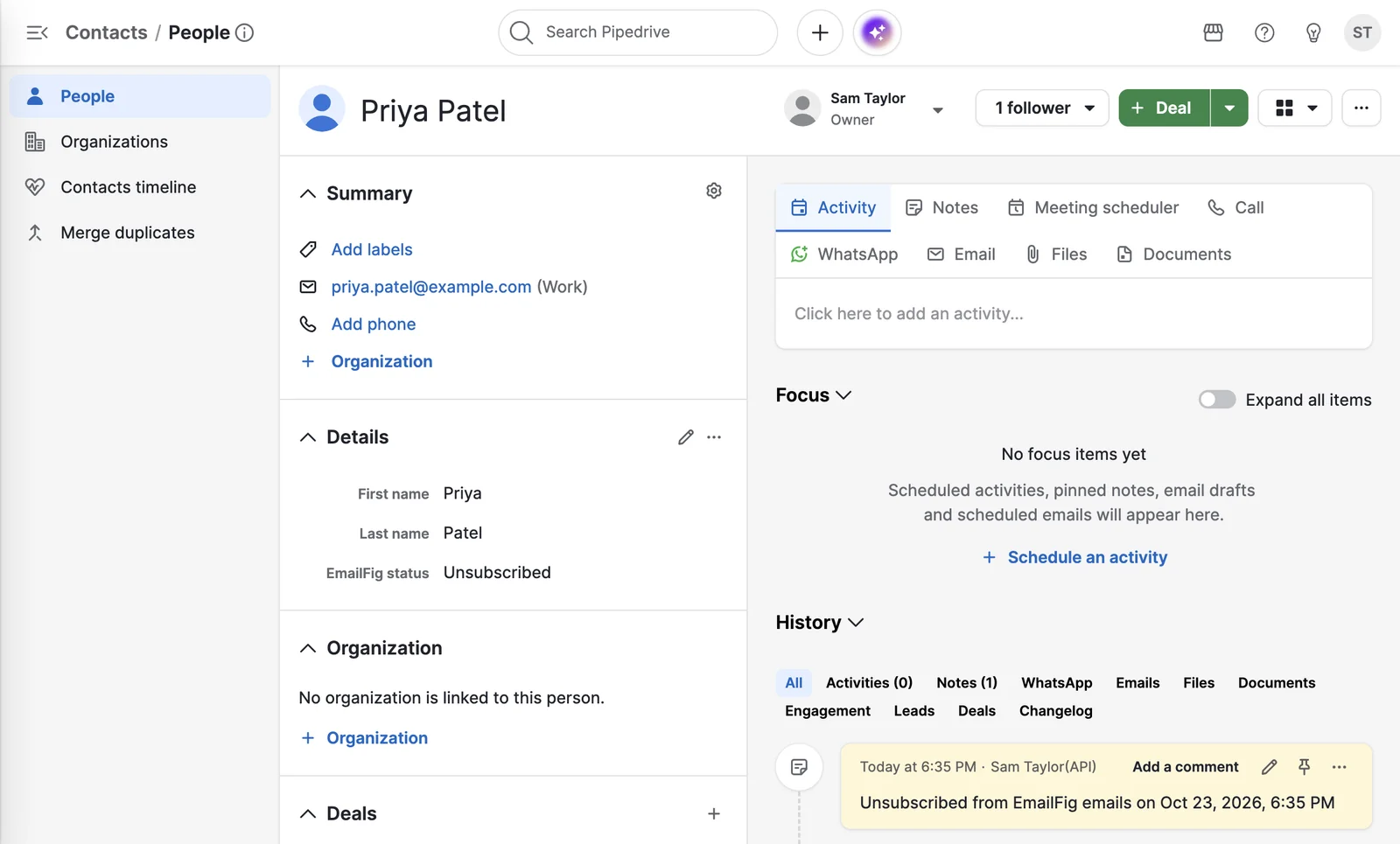
Someone you remove from a synced list in EmailFig comes back while they’re still in the filter. To keep them off, take them out of the filter or unsubscribe them. Someone who leaves the filter stays on the list. If you also send from Pipedrive Campaigns, unsubscribe people there too: EmailFig doesn’t read or change its marketing status.
If someone asks you to delete their data, erase them in EmailFig and delete them in Pipedrive too, or the sync adds them back. Deleting a person in Pipedrive leaves the contact in EmailFig.
Disconnect
On Settings → Integrations → Pipedrive, click Disconnect. Syncing stops, and your lists and contacts stay as they are. If you connect again later, add your sync pairs again.
When it stops syncing
Settings → Integrations → Pipedrive shows what’s wrong. For the first two, we email you as well.
- We couldn’t finish setup. Check that the person who connected is still a Pipedrive admin, then click Retry.
- A filter was deleted or can’t be seen. Remove that sync pair and add a new one.
- Paused until a time means Pipedrive’s request limit was reached. Syncing starts again by itself.
Stuck on something? Email contact@emailfig.com with your Pipedrive company name and a real person will help.