Read an automation report
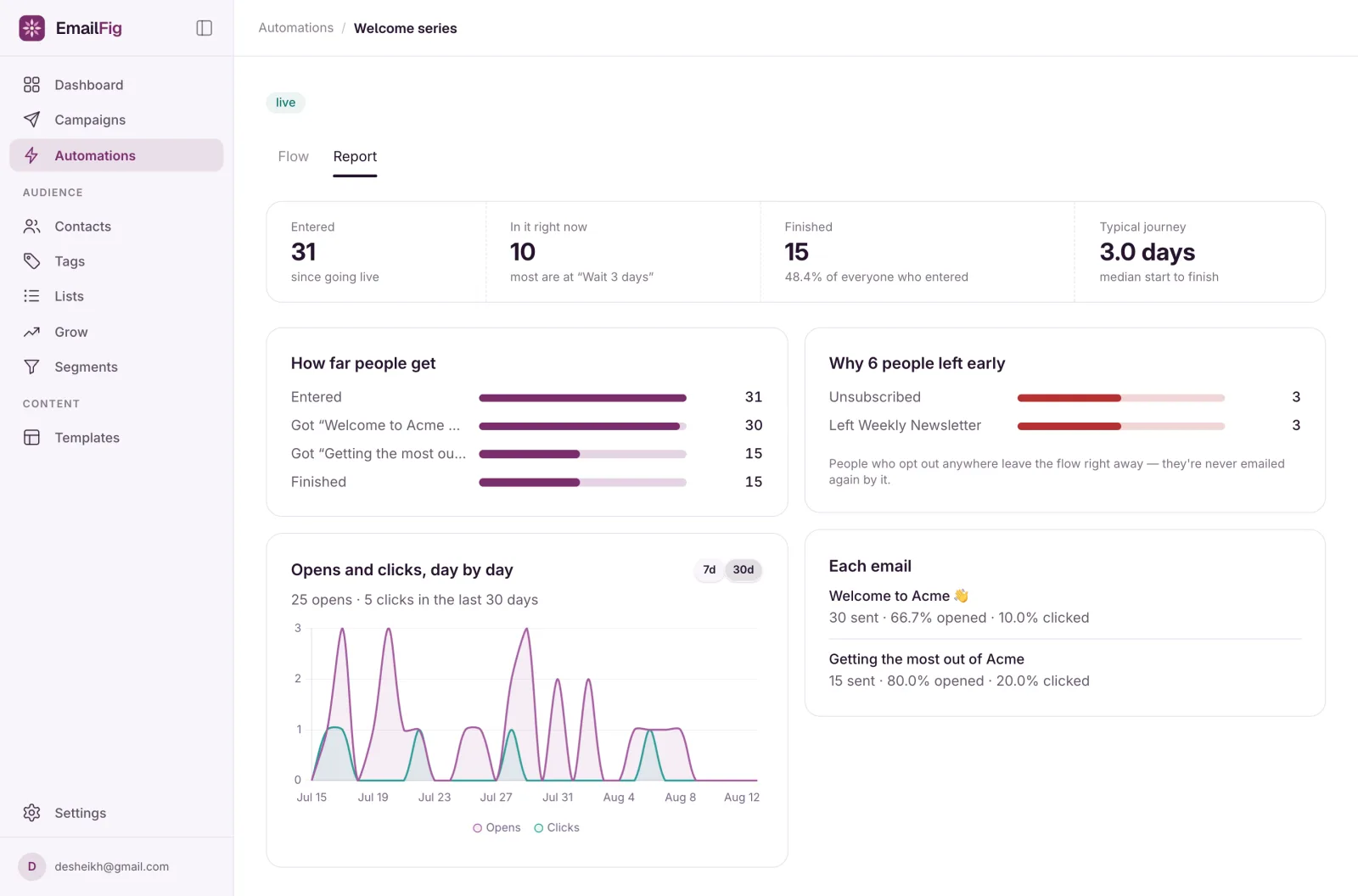
The Report tab shows how many people entered, where they are now, how each email is doing, and why people left early.
Once an automation has gone live, its page has a Report tab next to Flow showing how it’s doing. Until someone enters, it says “Nobody has been through this flow yet. Numbers show up here as people start entering.”
The headline numbers
- Entered: everyone who has entered since it went live.
- In it right now: people part-way through, with the step where most of them are.
- Finished: people who reached the end, and what share of everyone who entered that is.
- Typical journey: the median time from entering to finishing.
How far people get
One bar for Entered, one for each email (“Got” and its subject), and one for Finished. If the flow has a split, the bars don’t narrow like a funnel, because each one only counts the people on that email’s path.
Open events and clicks, day by day
A chart of opens and clicks across all the automation’s emails, for the last 7 or 30 days (7d / 30d).
Why people leave early
Each reason someone left before the end, with how many:
- Unsubscribed
- Bounced or reported it as spam
- Asked to be forgotten
- Left and the list name: they unsubscribed from the list the automation starts from
- The automation was archived: they were still in the flow when you archived it
- Something went wrong: they’re stuck at a step. This bar links to the stuck list.
Each email
Every email in the flow with its sent count, open rate and click rate. Emails you’ve removed stay here, marked removed, because they still count towards the totals.
Who’s waiting and who’s stuck
On the Flow tab, a step with people at it shows “N waiting here · see who”. Click it to see each person, when they joined, and roughly when they move on.
Stuck people show as an “N stuck” badge in the Needs a look column of the Automations page. Click it, or the Something went wrong bar, to see who stopped and where. Then:
- Open the step it names and fix it. A rule that can’t be answered is the usual cause.
- Click Reset stuck people and confirm. Everyone goes back through the step they stopped on. If you paused the automation to make the fix, they carry on once you resume it.
If there’s still a problem, the reset is refused with the reason and “Fix that first, then reset.” People who stopped at a step you’ve since removed can’t be reset, and neither can anyone in an archived automation. When nobody can go back, the page says why and there’s no Reset stuck people button.