Build a segment
A segment is a saved set of rules that finds the matching contacts every time you use it. Here's how to build and use one.
A segment is a saved set of rules, like “subscribed, on the newsletter list, and clicked something in the last 30 days”. EmailFig works out who matches each time you use it, so it’s always up to date. Deleting a segment never deletes contacts.
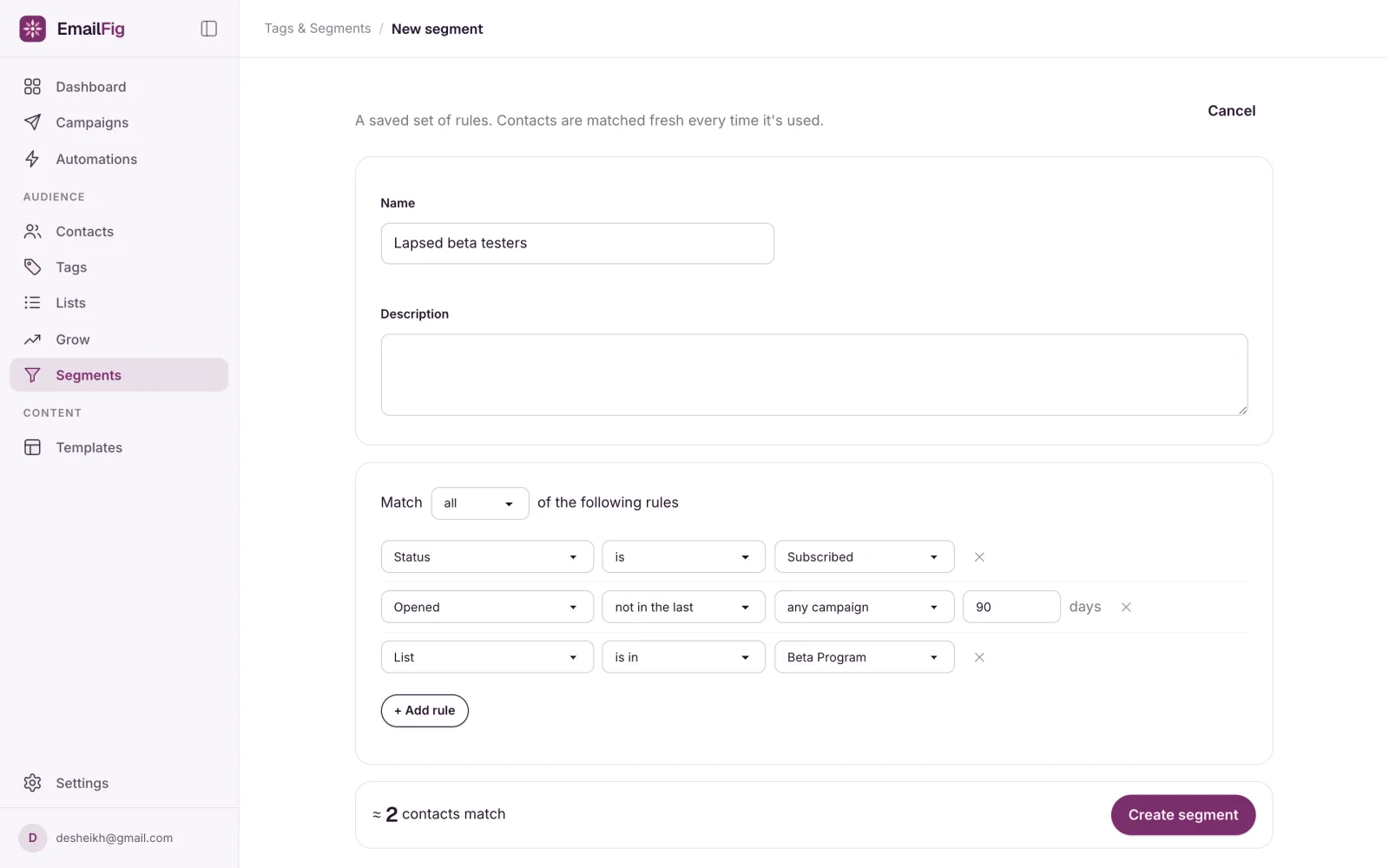
To make one, go to Contacts → Segments, click New segment, add your rules, give it a Name, and click Create segment. The count at the bottom (≈ N contacts match) updates as you edit, so you can see the effect of each rule before you save.
Add rules
A new segment starts with Status is Subscribed. Keep it unless you mean to include people you can’t email.
Each rule has a field, an operator and a value. Click + Add rule for another, and the × to remove one. With Match all of the following rules, a contact must meet every rule. Switch it to any to include anyone who meets at least one.
| Field | Operators | Value |
|---|---|---|
| Status | is, is not | Subscribed, Unsubscribed, Cleaned, Pending |
| Subscribed date | before, on, after | a date |
| in the last | a number of days | |
| List | is in, is not in | one of your lists |
| Tag | has, does not have | one of your tags |
| Opened, Clicked, Received | in the last, not in the last | any campaign or one campaign, and a number of days |
Engagement rules read like a sentence: Opened · not in the last · any campaign · 90 days. Pick one campaign instead of any campaign to ask about that send alone. “Not in the last” then only matches people who were sent that campaign.
Starter segments
Until you’ve saved a segment, Contacts → Segments offers three starters. Each opens the builder, ready to adjust and save:
- Engaged (30d): subscribed contacts who opened something in the last 30 days. A good first audience for a new domain (see Warm up a new sending domain).
- Cold (90d): subscribed contacts with no opens in 90 days. See Clean your list of inactive contacts.
- Recently joined: subscribed contacts who joined in the last 30 days. To welcome every new subscriber automatically, use an automation instead (see Create a welcome series from a recipe).
You can also start from a tag: on Contacts → Tags, open the tag’s … menu and choose Create segment.
Use it
- In a campaign: on the Audience card, choose Tags and segments and pick it. Matching any one of your picks is enough to get the campaign, so for a narrower audience, put all the conditions in one segment.
- On the contacts page: choose it under Filters, then click Export if you want a file.
- In an automation: a split can send people down different paths depending on whether they’re in a segment. See Branch your flow with a split.
Every send still skips anyone who isn’t subscribed or whose address is suppressed, whatever the segment says.
The Contacts number on the segments table is a recent count, not a live one. If the rules have changed since, a line under it says when it was counted, and Not counted means there’s no count yet. The count in the builder, and every send, is always up to date. For a saved segment, See who matched in the builder opens the contacts table filtered to it.
If something’s wrong
- “Maximum of 20 rules reached.” Split the segment, or use a tag.
- “Fix the rule marked in red to see a count.” A rule isn’t finished, often an empty date or day box. The box that needs filling turns red, with what’s missing under the rule. Fill it in and the count comes back.
- “Couldn’t update the count.” The count didn’t load. Click Retry.
- “That segment can’t be used any more: …” A rule names a list, tag or campaign that’s been deleted. Open the segment and fix that rule.
- You can’t delete the segment. A campaign or a live automation still uses it, and the message says which. Draft campaigns count too.