Create a list
Make a list, choose whether signups confirm by email, and get contacts onto it.
Go to Contacts → Lists, click New list, give it a Name, and click Create list. Signup forms add people to a list, so you’ll want at least one.
Create it
- Open Contacts → Lists and click New list.
- Enter a Name. If the list appears on your preference centre, subscribers see this name, so use one they’ll recognise: “Monthly newsletter”, not “list_2”.
- Add a Description if you like. It also shows under the name on the preference centre.
- Under Signup confirmation, tick Double opt-in if people joining through a signup form should confirm by email first. We recommend it for any public form. See Set up double opt-in.
- Choose When a campaign sends to this list (see below). The default suits most lists.
- Click Create list.
When a campaign sends to this list
This only matters if you use a preference centre and a campaign picks this list as its Subscription list:
- Everyone, unless they opt out: the campaign goes to everyone in its audience except people who opted out of this list. Good for your main newsletter.
- Only people who opt in: the campaign goes only to people subscribed to this list, and everyone else in its audience is left out. Good for something nobody should get by accident, like a beta programme.
Only people who opt in can make a campaign’s audience much smaller than the tags or segments it targets. Check the live count on the campaign’s Audience card. To set up topics, see Customise the unsubscribe experience.
Get contacts onto it
From the list’s page:
- Add contacts opens the new contact form, to add one person by hand.
- Import contacts opens the CSV importer with this list already picked. See Import contacts from a CSV.
- A signup form adds everyone who signs up to its list. See Create an inline signup form.
To add many people you already have, use Add to list on the Contacts page. See Bulk actions on contacts.
Reading the list page
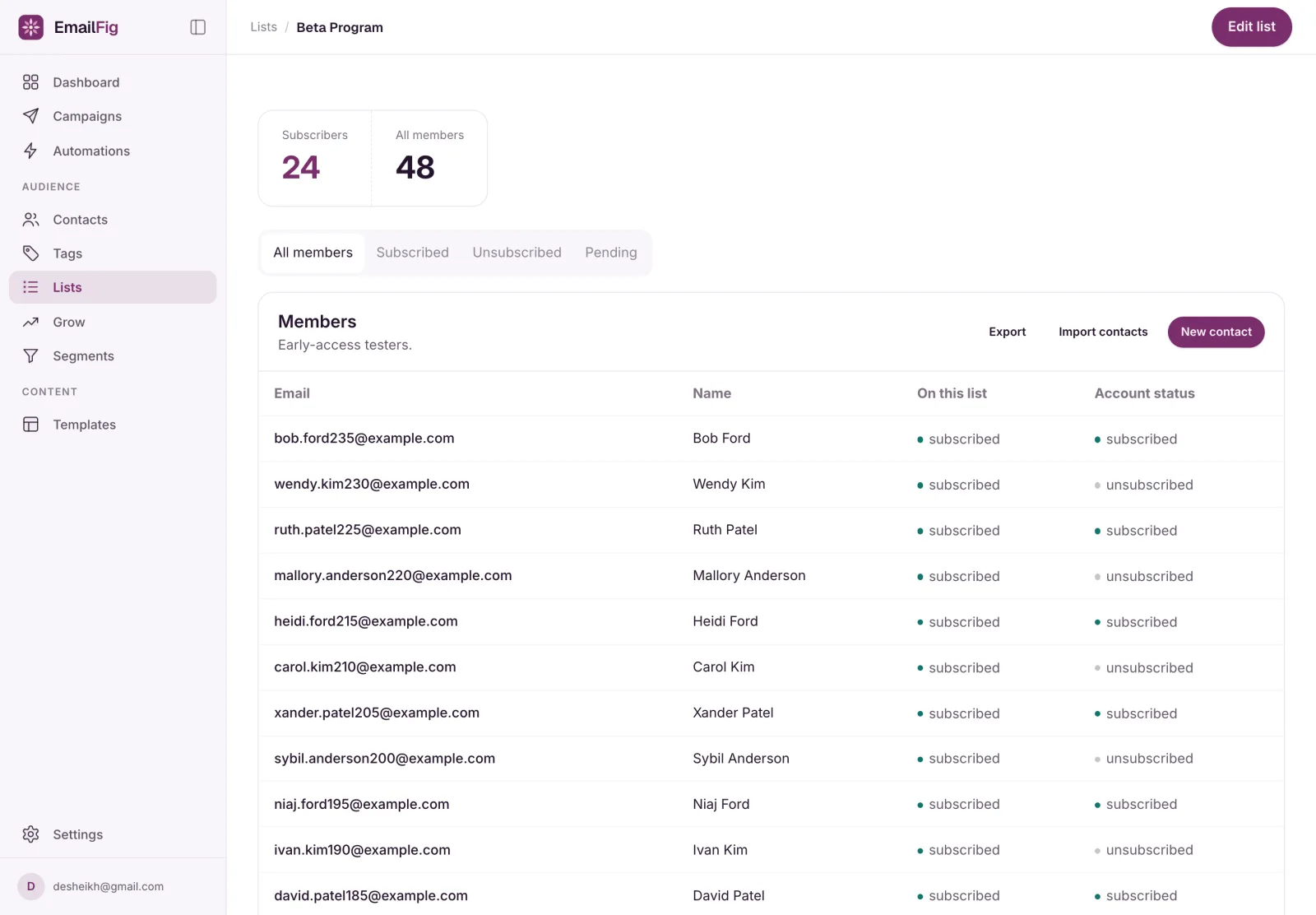
- Can be emailed counts members subscribed to this list and to your account.
- All members also counts people who left this list or haven’t confirmed yet.
The All members, Subscribed, Unsubscribed and Pending tabs show who’s who, with a count on each, and the table shows both statuses for each person: On this list and Account status. Someone who unsubscribed from your whole account is still on the Subscribed tab, but not in Can be emailed.
How many lists?
One for each thing a person might sign up to separately. To describe people, like “customers” or “attended the webinar”, use tags instead.
Edit or delete
Edit list on the list’s page changes any of the settings above. To delete a list, open the … menu on its row in Contacts → Lists and choose Delete. Its contacts stay on your account and keep their other lists. A list can’t be deleted while something still uses it, and the message says what. See Why I can’t delete this list or tag.