Import contacts from a CSV
Upload a CSV, match its columns to contact details, read the results, and fix an import that didn't finish.
Go to Contacts, click Import CSV, choose your file and (if you like) a list, then match each column to a contact field, confirm you have permission to email everyone in the file, and click Start import. The import runs in the background and the page updates as it goes, so you can leave and come back.
Your file needs a header row, must be a UTF-8 CSV, and can be up to 25MB.
Import a file
- From Contacts, click Import CSV. (On a list’s page, Import contacts does the same with that list already picked.)
- Choose your CSV file.
- Pick a list under Add to list (optional), or leave it on No list. Contacts without a list still get campaigns sent to All subscribers.
- Click Upload & map columns.
- The next page is named after your file and lists each column with a couple of values from it. Choose a Contact field for each one: Email address, First name, Last name, Subscription status, Source, or one of your custom fields (listed by name, with its key beside it). Common headings are matched for you. Leave anything you don’t want on Skip.
- Tick Everyone in this file gave me permission to email them. We keep a record of who ticked it and when.
- Click Start import.
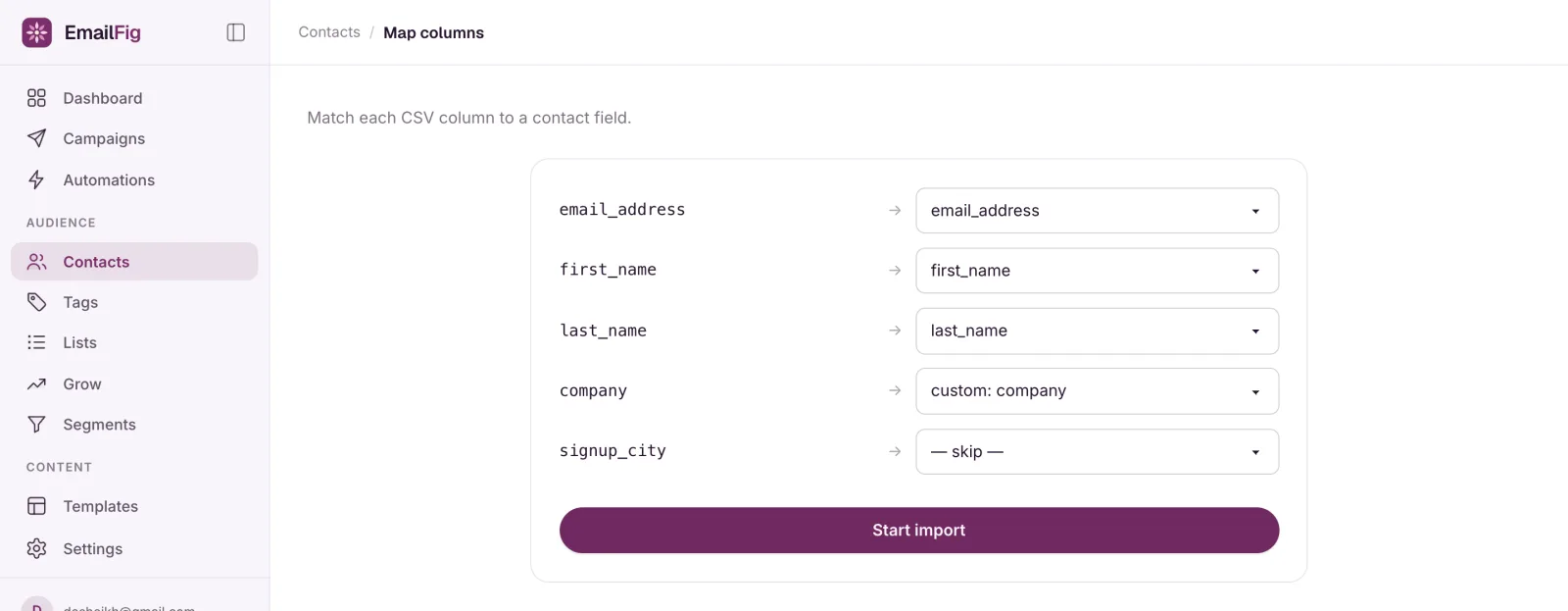
Exactly one column must be Email address. If no heading looks like one, the page says so before you start. If you start without one, you’ll see Map exactly one column to Email address to start the import. Your other choices are kept, so fix that one and carry on.
Importing again with fewer columns won’t blank anything. Names and custom fields already on a contact stay, unless the new file has a value for them.
Imports don’t start automations. See Automation triggers.
Reading the results
A finished import opens with a line like 1 of 53 rows imported. 52 skipped. When more than a fifth of the file was skipped, that line turns into a warning with Download skipped rows. If you picked a list, View and the list’s name takes you to it.
- Created and Updated: new contacts, and existing ones whose details were refreshed. Imported contacts are subscribed unless the file or your suppression list says otherwise.
- Skipped: rows that didn’t become a contact. That’s invalid addresses, throwaway addresses, domains that can’t receive email, and blank rows.
- Imported but kept off the list: addresses on your suppression list, counted as On your suppression list. That includes rows your file marked
unsubscribed. They’re imported as cleaned if they bounced, or unsubscribed if they opted out. Rows your file markedcleanedare counted as Marked cleaned in your file. - Flagged: imported as normal but worth a look, usually shared addresses like
info@orsales@. - Auto-corrected: obvious typos in well-known email domains are fixed for you (
gmial.combecomesgmail.com). Show N auto-corrected typos lists each one.
N error rows opens a list of each problem row with its reason, and Download CSV under it gives you the full set to fix and upload again. A custom field value that doesn’t fit the field’s type (a word in a Number field, say) is listed too, marked Imported, with a warning: the value is left out, but the rest of that row still imports. Up to 1,000 rows are kept.
Bringing opt-outs across
To carry unsubscribes over from another provider, map that column to Subscription status. It’s never matched for you. Rows marked unsubscribed become unsubscribed contacts and go on your suppression list, so a later import can’t resubscribe them. Rows marked cleaned become cleaned contacts and are kept off the list.
If an import didn’t finish
- “We couldn’t read the column headers from this file.” It’s usually an Excel file renamed to
.csv. Save it as CSV UTF-8 and click Upload a different file. - “This import didn’t finish.” Click Retry import and it picks up where it stopped. If the message says we couldn’t read the file past line N, that line has an unclosed quote mark. Fix it and upload the file again (contacts already imported are updated, not duplicated).
- “We no longer keep the file you uploaded, so this one can’t be retried.” Uploaded files are deleted 30 days after an import finishes. Click Upload it again.
- “This import never finished.” The columns were never mapped, and after 90 days the file is removed. Click Upload it again.
You’ll find past imports, by file name and list, under Past imports on the import page.
Only import people who agreed to hear from you. A bought or scraped list can get your sending paused or your account suspended. See Why you shouldn’t send to purchased lists.