Cancel or resume your subscription
Cancelling keeps your plan until the end of the billing period, and you can change your mind until then.
Go to Settings → Plan & billing, click Cancel subscription on the Subscription card, and confirm. You keep your paid plan until the end of the current billing period, and you can undo it any time before then.
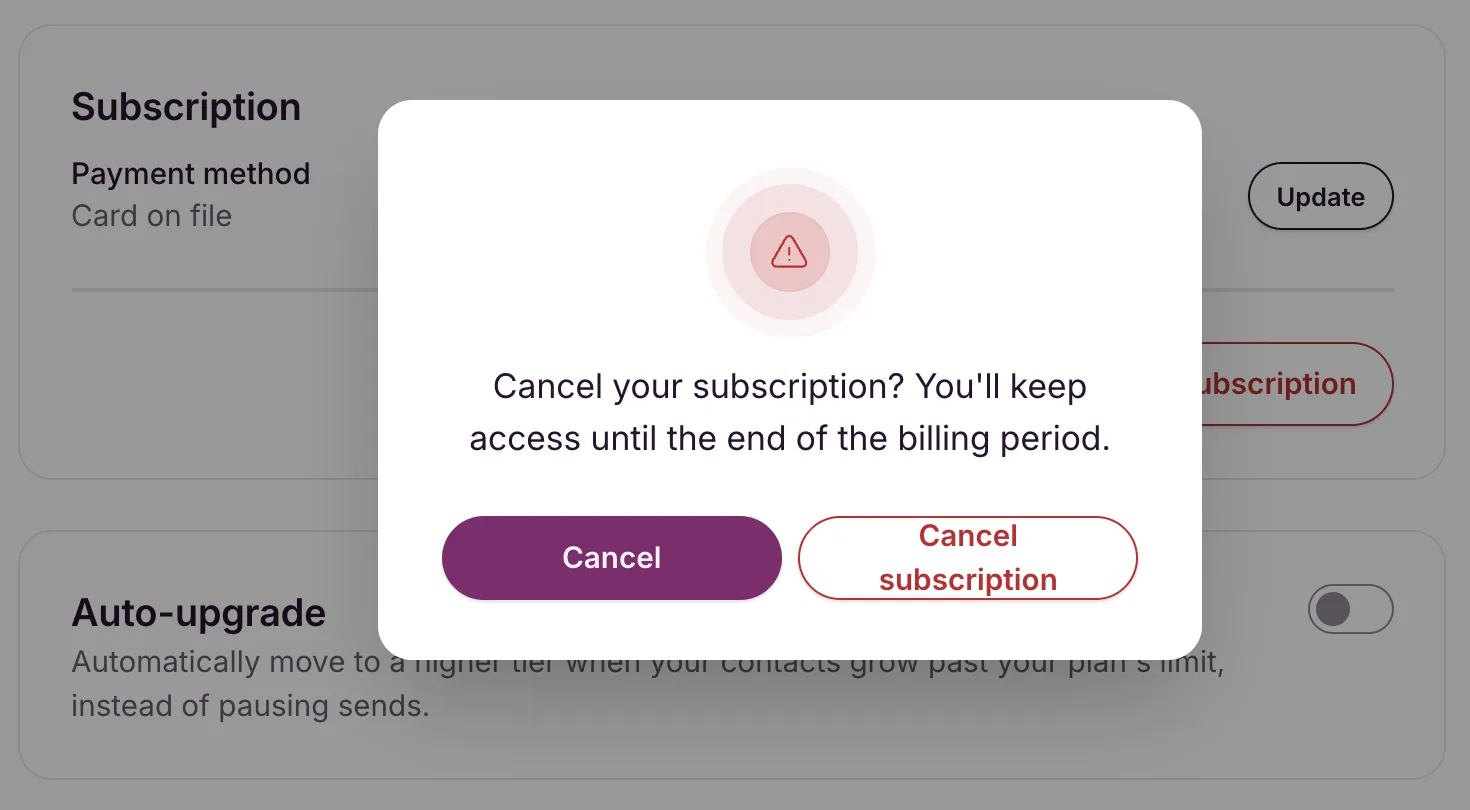
What you’ll see
- Usually: “Cancellation scheduled. You’ll keep access until…” with the date. A banner on Plan & billing reminds you of the date, with a Keep subscription button.
- If a payment has failed and is still unpaid: the subscription ends straight away, with “Subscription canceled. Your access has ended.”
While a cancellation is scheduled, Auto-upgrade doesn’t apply. If your list outgrows your plan, sending pauses instead of moving you to a bigger plan.
Changed your mind?
Before the end date, click Keep subscription on the banner or on the Subscription card. You’ll see “Subscription resumed. Your plan will keep renewing.”
After the end date there’s nothing to resume. Click Choose Orchard on Plan & billing to start again.
When the plan ends
We email you, and your account moves to the free plan:
- up to 4,000 subscribed contacts, and sending pauses if you have more;
- 10,000 emails a month on platform sending;
- the EmailFig line comes back on your emails and hosted pages, even if you’d switched it off.
Nothing is deleted. Your contacts, campaigns, templates, reports and sending domains all stay, so you can pick up where you left off if you subscribe again.