Use your own HTML
Paste or write a complete HTML email, preview it as you type, and fix anything flagged before you send.
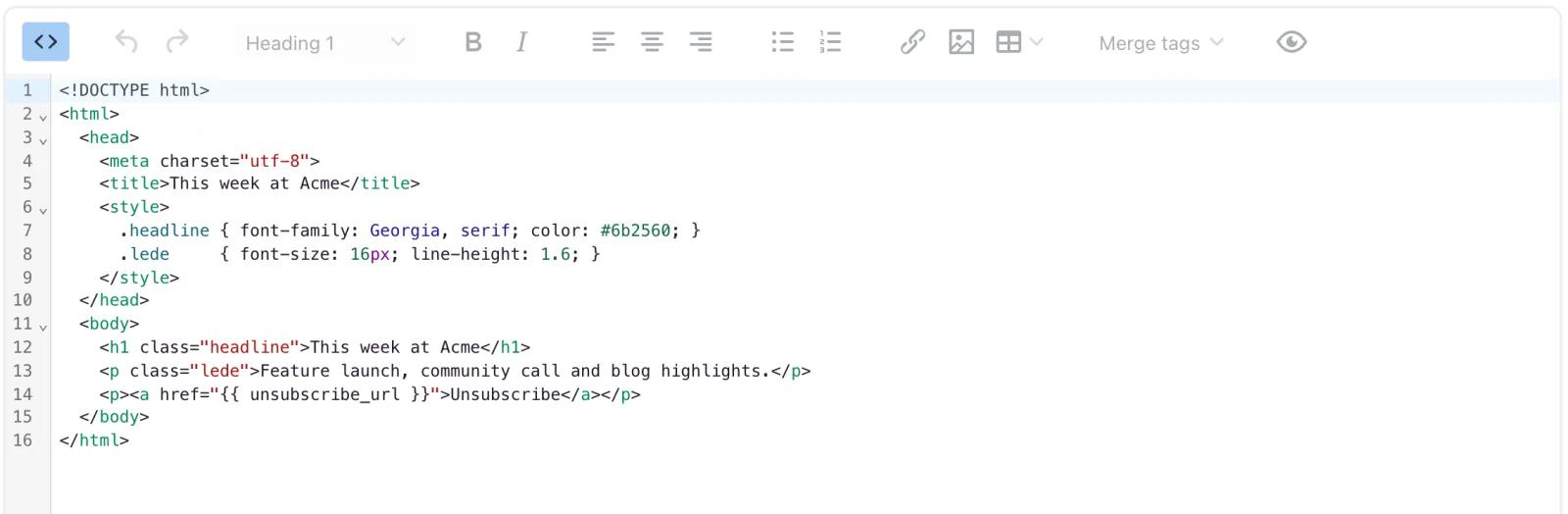
The HTML editor takes a complete HTML email, so you can paste in a design exported from another tool or write one by hand. Your code sits on one side, a live preview on the other, and the Checks tab tells you about anything that would stop it sending.
Paste or write your email
- Open an HTML template (Templates → New template, then HTML), or a campaign whose email uses the HTML editor.
- On the Code tab, paste or type the whole email, from
<head>and<style>to the end. - Watch the preview. Rendered fills in merge tags with sample contact details; Raw shows exactly what you typed. Desktop/Mobile and Light/Dark change how it’s displayed. Click anything in the preview to jump to its code. While a merge tag is broken, Rendered shows your raw tags and says so.
- Open Checks and fix anything under Errors: these stop it sending.
- Click Save (in a campaign, Save or Save & continue →; in an automation, Save or Save & close).
The Merge tags and Checks tabs
Merge tags shows the two things every email needs, the Unsubscribe link and Mailing address, each with a Copy button and the line where yours already appears. Below them is every merge tag you can use. You can also type {{ in the code to pick one.
Checks sorts what it finds into Errors: these stop it sending (no unsubscribe link, no mailing address, a broken merge tag, too large to save) and Warnings: it will still send (an unknown merge tag, an image with no alt text or on http, a link that goes nowhere, code that saving will remove). Where it can, a finding has a Go to line button that takes you to the code.
To add a picture, click Add image, pick one from your library and click Insert image. It goes in at your cursor. See Add images to an email.
What changes when you save
EmailFig keeps your HTML as you wrote it, including <style> blocks, media queries (the rules that adapt a layout for phones) and Outlook conditional comments (code meant only for Outlook). It removes anything that could run code or load something unsafe: scripts, onclick-style attributes, forms, embedded frames and javascript: links. Checks lists what will go before you save, and saving a template tells you what it removed.
You don’t need to inline your CSS (copy your styles onto each element). EmailFig does that when the email sends, so it displays properly in Gmail and Outlook.
If something’s wrong
- Save is refused as too large. An email can be up to 1 MB of HTML. Host images in your library rather than embedding them in the code.
- Save is refused because of a
{% for %}or{% include %}. Merge tags work, but loops and includes from other platforms don’t. Replace them with plain content. - It looks different in a real inbox. The preview is a web browser, and every inbox shows email a little differently. Send yourself a test from the campaign and check it there. See Send a test email.