Read a campaign report
What each part of a campaign's report shows, from delivery and opens to the links people clicked and the email itself.
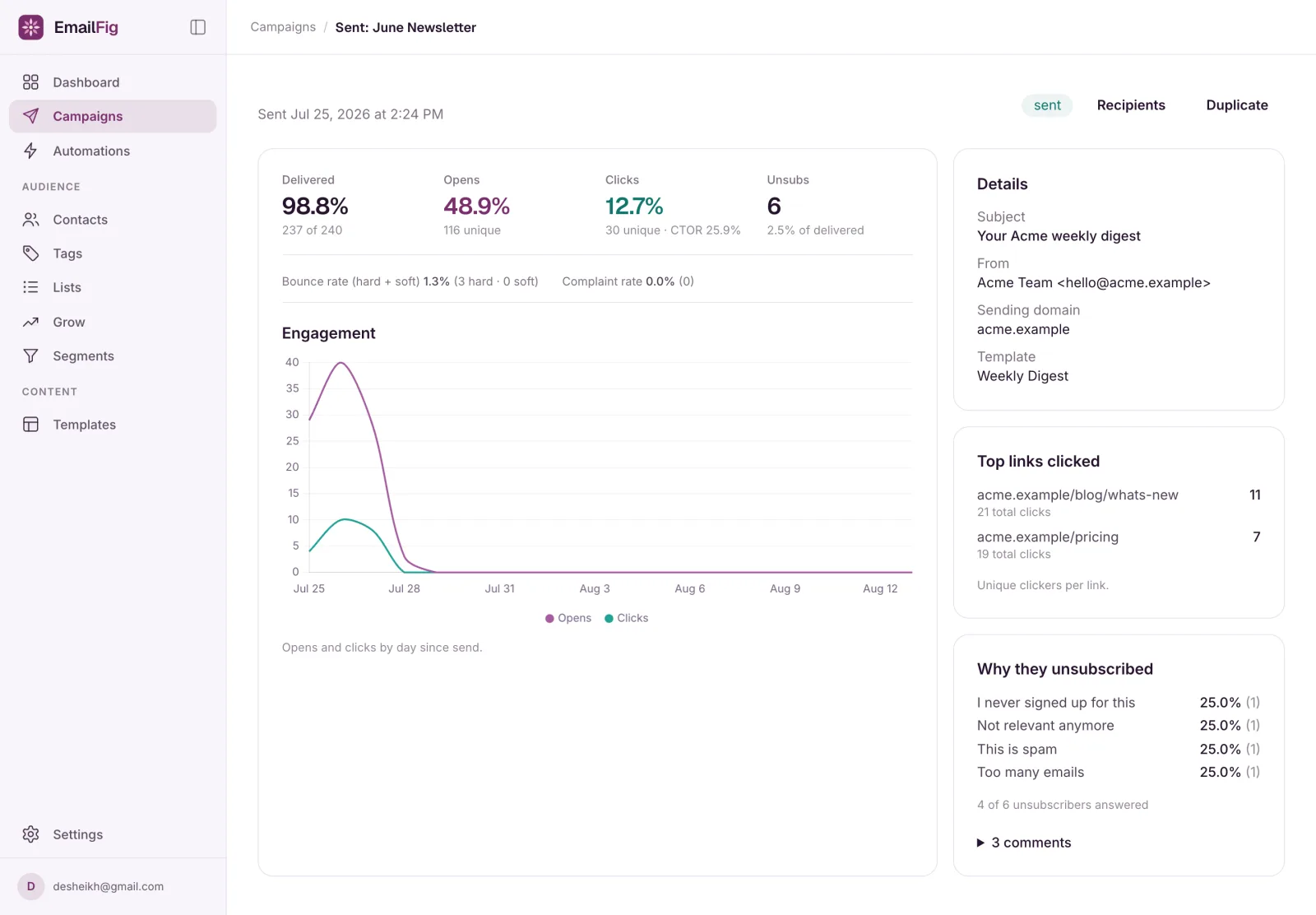
Go to Campaigns and click a campaign’s name to see its report. Once a campaign is sending or sent, the Overview tab shows how many people got it, opened it and clicked, which links did best, and why people unsubscribed. The Email tab shows the email exactly as it went out, and Recipients lists everyone it went to.
Headline numbers
- Delivered: the share of sent emails that were delivered, with the counts underneath (for example “237 of 240 sent”).
- Opened: the open rate, with how many people opened. Treat it as a trend: see Why are my open rates inflated?.
- Clicked: the click rate, with how many people clicked and what share of openers clicked (the click-to-open rate).
Under Opened and Clicked, “vs your average” compares this campaign with your last 10 campaigns, once you’ve sent at least two before it.
Click the number of people under Opened or Clicked to see exactly who they were.
Unsubscribes, bounces and spam shows how many people unsubscribed, how many emails bounced, and how many people marked it as spam. Once at least 100 emails are delivered, the card reads Healthy, or At risk with a short warning when bounces or spam reports are high enough to put your sending at risk: hard bounces at 5%, spam reports at 0.1%. The exact formulas are in Metrics defined. Click a number to see who unsubscribed, bounced or reported it. A bounce count that includes soft bounces (a full mailbox, say) isn’t a link, since those people still show as Sent.
If some of the people you targeted didn’t get the email, a line reads Not sent to N people you targeted. It gives the reasons (for example, they had unsubscribed or never confirmed their signup), and a see who link lists anyone who wasn’t delivered.
Opens and clicks
A chart of opens and clicks over time: by hour for the first day, then by day. Beside it, Why they unsubscribed appears if you collect unsubscribe reasons and anyone answered. Under 20 answers it shows how many picked each reason; from 20 up it shows each reason’s share too. See Why do people unsubscribe?.
Links
Every tracked link in the email, ranked by how many people clicked it, with total clicks (including repeats) beside it. A link that appears more than once, like a product’s image and its button, gets one row, and someone who clicked both counts once.
- It shows your top 10 links. Click Show all to see the rest.
- It counts clicks in the First 30 days after the send. The Clicked card keeps counting after that, so the two can differ on an older campaign.
- Unknown link collects clicks EmailFig couldn’t match to a link in your email.
- The unsubscribe and “view in browser” links aren’t tracked, so they never appear here.
- Click Show on email to see the clicks on the email itself.
The email
The Email tab shows the email as your recipients got it, filled in with a sample contact’s details, under the From address and subject they saw in their inbox.
- Show clicks puts a badge at the top right of each link on the email: its share of everyone who clicked, then how many people clicked it.
- Open in new tab opens the email on its own.
To reuse the email, duplicate the campaign.
Before and after sending
- Draft: clicking the campaign opens the campaign builder instead of a report.
- Until the first emails go out (scheduled, being checked, getting ready, or canceled or failed before sending), the campaign opens on its Email tab. There’s no Overview yet.
- Scheduled: a card above the tabs says when it sends and to about how many people. To change anything, click Unschedule to edit.
- Sending or paused: a bar above the tabs shows how many have gone out so far.
- Once the first emails go out, Overview shows the report, whatever the status.
A banner on every tab explains anything that needs it:
- We’re checking this campaign before it goes out while it’s in review, and Getting your send ready while it’s preparing. The page updates on its own.
- A red banner gives the reason a campaign failed. For a template error, Details shows the exact problem. Click Revise to turn it back into a draft and fix it. See Fix and resend a failed campaign.
- We paused this send means EmailFig paused it, and says why. If it’s a billing issue, click Fix billing, then Resume.
- This send was stopped part-way or This campaign was canceled tells you how many people it reached before it stopped.
See Campaign statuses explained for what each status means.