Recipient activity and CSV export
See everyone a campaign went to and when they opened or clicked, then export the list as a CSV.
Open a campaign and click its Recipients tab to see everyone it went to, one row each: Email, Name, Status, and when it was Sent, Opened, Clicked or Bounced. Times are in your account’s time zone.
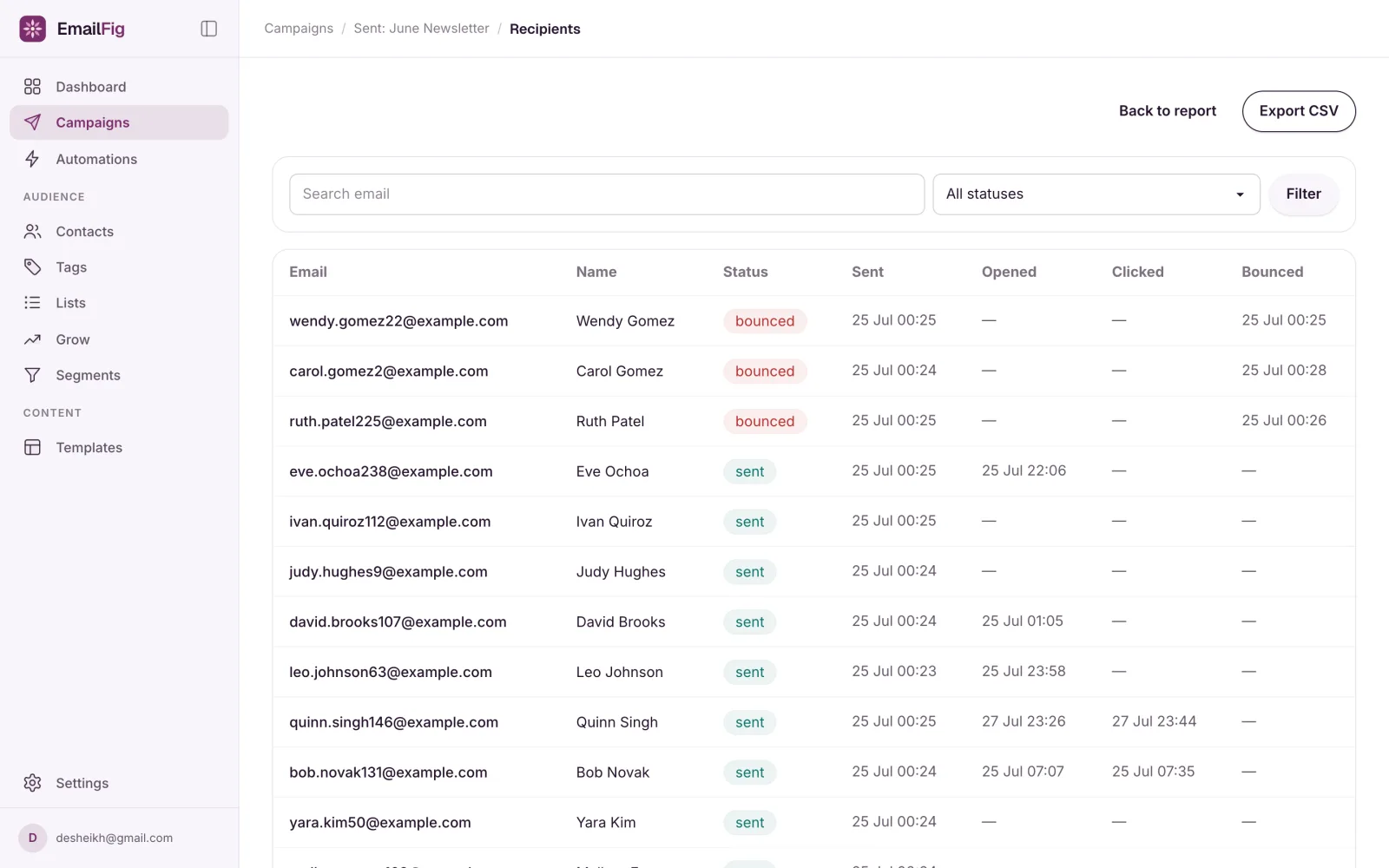
Find people
Type in Search email and press Enter to find one address, or pick a status from All statuses to filter straight away. Clear resets both.
The statuses you’ll use most:
- Opened and Clicked: everyone who opened it, or clicked a link. The people counts on the campaign’s Overview bring you here.
- Didn’t open and Didn’t click: people it reached who didn’t open it, or didn’t click. Useful for a follow-up.
- Unsubscribed: everyone who unsubscribed from this email.
- Sent: the email went out to them.
- Bounced and Complained: it bounced, or they marked it as spam.
- Undelivered (Failed and Skipped together): they never got it. The reason shows under their status, for example that they opted out after the campaign was built, or that the campaign was stopped first. The report’s see who link brings you here.
- Queued: the email is still on its way.
A contact who has since been erased shows as (erased). Their row stays but their details are gone, so search can’t find them. See Erase a contact (right to be forgotten).
Export to CSV
Click Export CSV, beside the filters, to download a spreadsheet file of whatever your current search and filter show.
- Up to 10,000 rows download straight away.
- Larger exports are prepared in the background, and we email you a Download your export link when it’s ready. You need to be signed in to EmailFig to use it.
If a large export fails, we email you. Start it again from the same page.
The file has these columns:
email, first_name, last_name, lists, pending_lists, unsubscribed_lists, status, error, sent_at, delivered_at, bounced_at, complained_at, opened_at, clicked_at, unsubscribed_at, unsubscribe_reason, unsubscribe_comment
- The three list columns show which of your lists the person is subscribed to, waiting to confirm, or unsubscribed from.
- Times in the file are in UTC, not your account’s time zone.
- The last two columns are filled in when the person answered the unsubscribe question. See Why do people unsubscribe?.