Automation steps explained
Build a flow from five kinds of step: send an email, wait, add a tag, remove a tag, or split. Every step is set up in the panel beside the flow.
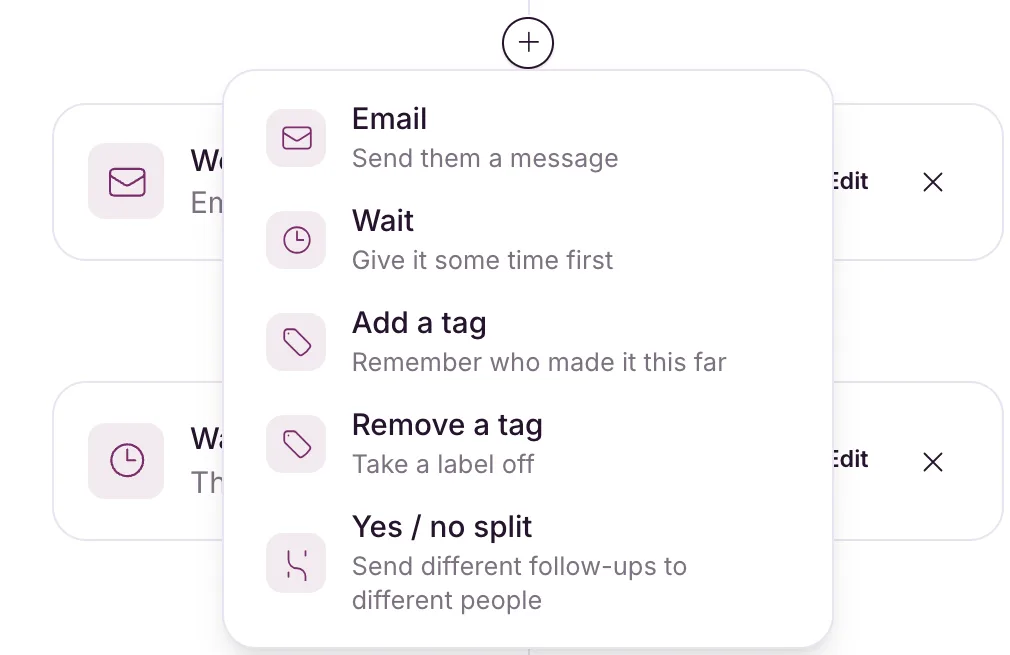
An automation is a chain of steps that each contact moves through in order. There are five kinds:
| Step | What it does |
|---|---|
| Send them a message | |
| Wait | Give it some time first |
| Add a tag | Remember who made it this far |
| Remove a tag | Take a label off |
| Yes / no split | Send different follow-ups to different people |
You can add, change or remove steps while the automation is a draft or paused. A live one shows “This flow is running, so it’s view-only.” until you pause it.
Add a step
- In the builder, click the + on the line where you want the step to go.
- Pick a step from the menu.
- Its settings open in the panel on the right. Fill them in and click Save.
To change a step later, click its card in the flow.
The panel has the basics:
- Subject
- Preview text: the line inboxes show under the subject.
- From: the name people see, then the from address. Only addresses on your verified sending domains are listed.
Then click Design the email to write the message itself:
- Pick a starting point: one of Yours, a template from the Gallery (click Use template), or write from scratch with Drag & drop or HTML.
- The email opens full screen in the same editor campaigns use. The bar across the top has Back to the flow, Start over (pick a different starting point), Preview, Save as template, Save and Save & close.
- Click Save to keep working, or Save & close to save and go back to the flow.
Once an email has a design, the button reads Edit the email instead. Every email needs an unsubscribe link and your mailing address in its footer. The gallery templates already have both.
Use Preview to check how an automation email looks.
Wait
Set How long? as a number of minutes, hours or days, anywhere from 5 minutes to 180 days. If you pause the automation, the clock pauses with it.
Add a tag and Remove a tag
Choose the tag under Which tag? and click Save. A tag step from a recipe starts with no tag chosen, so pick one before you go live.
Yes / no split
A split sends people down one of two paths, based on whether they opened or clicked, who they are, or an A/B share. See Branch your flow with a split.
Remove a step
Click the step to open its panel, then click Remove step at the bottom and confirm. Anyone waiting at that step moves on to the next one.
An email that has already gone out keeps its numbers. It moves to a collapsed section below the flow (“1 removed email still counted here”) and stays in the report.