Build an email with the drag & drop editor
Build an email that looks good on phones and computers from ready-made blocks, with no code.
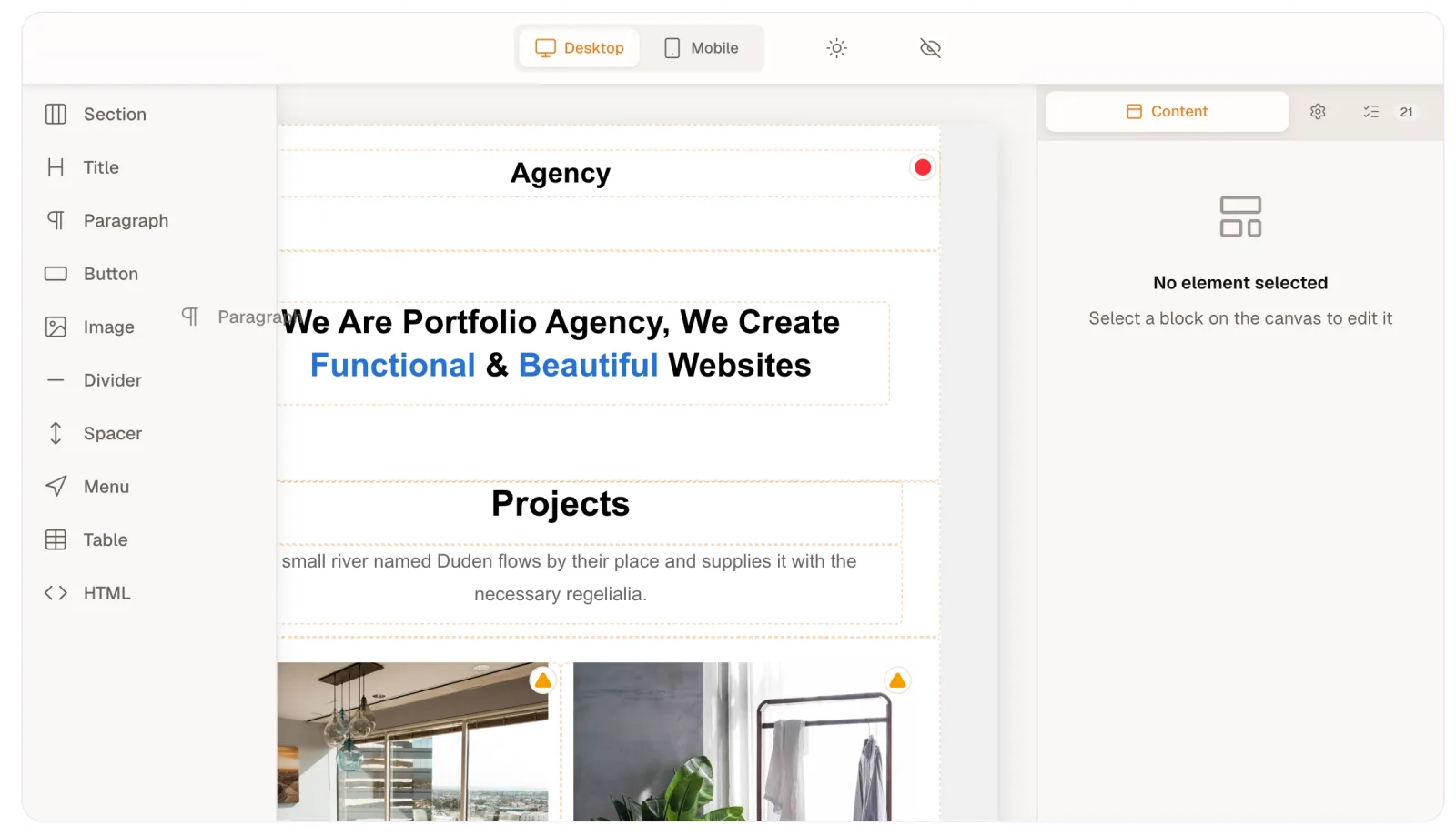
The drag & drop editor builds an email from blocks you arrange on a canvas, with no code. Drag something in, click it to change its text and settings, then save. Your email adapts to phones and computers on its own.
Build your email
- Open a drag & drop email: Templates → New template, then Drag & drop, or pick a Gallery template (they always open here). A campaign’s Content step opens the same editor.
- Add a layout. In the left-hand panel, Layout offers empty sections in 1 column, 2 columns, Wide + narrow, Narrow + wide and 3 columns.
- Add content. The same panel has single blocks (Title, Paragraph, Button, Image, Divider, Spacer, Menu, Table, and HTML for your own code) and ready-made sections under Header, Hero, More, Call to action and Footer. Drag any of them to where you want it. Clicking a single block adds it at the end of the email; clicking a layout or ready-made section adds it below the block you’ve selected.
- Click any block to edit it. Its settings (colours, alignment, spacing and so on) open in the panel on the right.
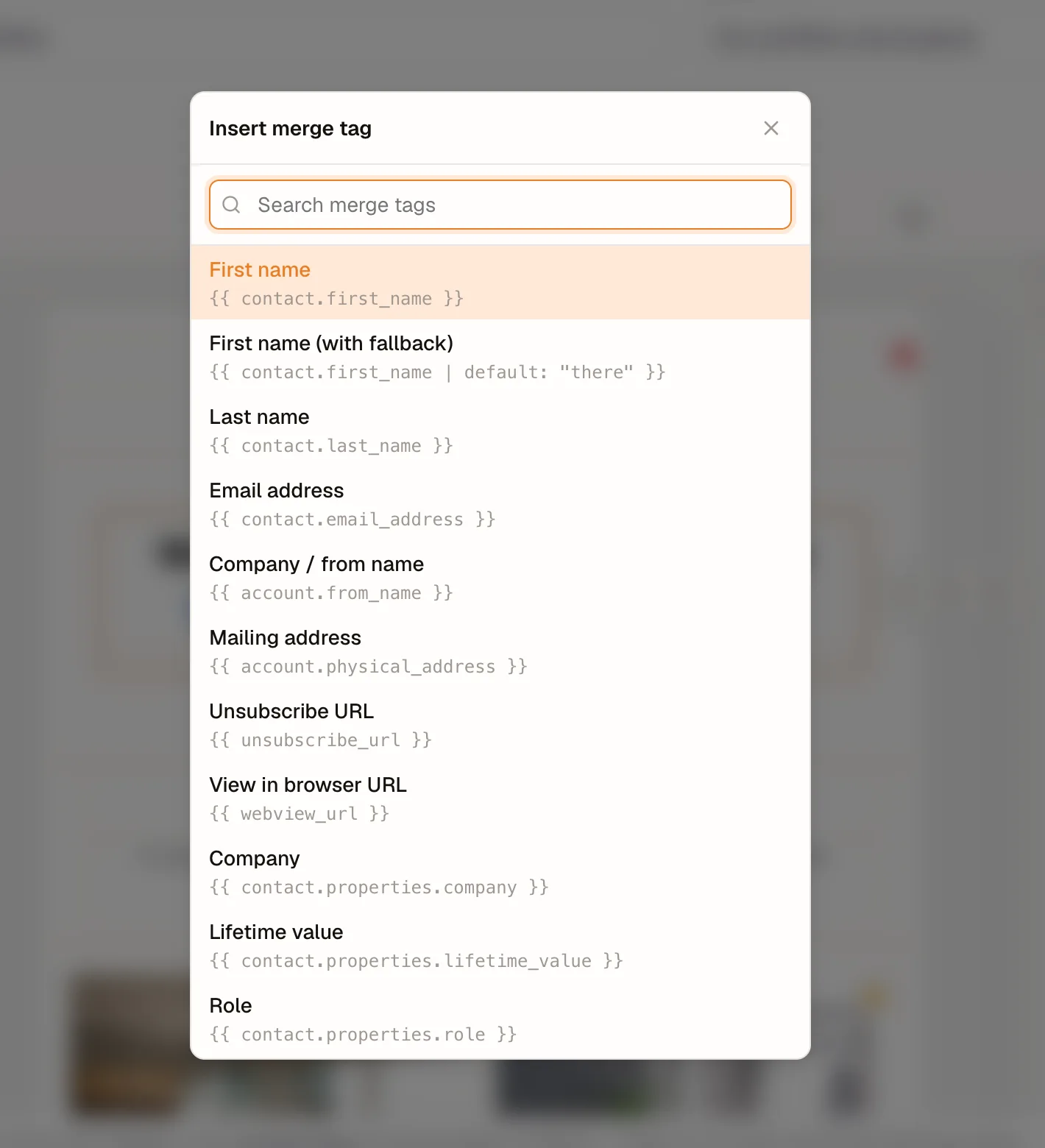
- To personalise text, click Merge tag in the toolbar while editing a title or paragraph. Merge tags fill in each person’s details, like their first name. See Merge tags: personalise with contact data.
- Click Save (in a campaign, Save or Save & continue →; in an automation, Save or Save & close).
To add a picture, drop in an Image block and click Choose image in its settings to open your image library. See Add images to an email.
Preview your email
The bar above the canvas switches between Desktop and Mobile widths. The eye icon (Preview) hides the editing controls, and the sun icon (Preview in dark mode) shows the email on a dark background.
To check it in a real inbox, send yourself a test from the campaign. See Send a test email.
If something’s wrong
- The editor won’t open on your phone. It needs a tablet or computer screen.
- You need something the blocks can’t do. Use an HTML block for that one piece. For full control of the whole email, use the HTML editor instead. See Choose an editor.
- The footer is missing its unsubscribe link or address. Every Footer section includes both. If you’ve built your own, add the Unsubscribe URL and Mailing address merge tags. See What every email must include.