Add images to an email
Upload an image once and reuse it in any email. PNG, JPG or GIF, up to 10 MB each.
Every image you upload goes into your image library, so you can reuse it in any email without uploading it again. Uploads can be PNG, JPG or GIF, up to 10 MB each, and EmailFig hosts them for you.
Add an image
- Open the library:
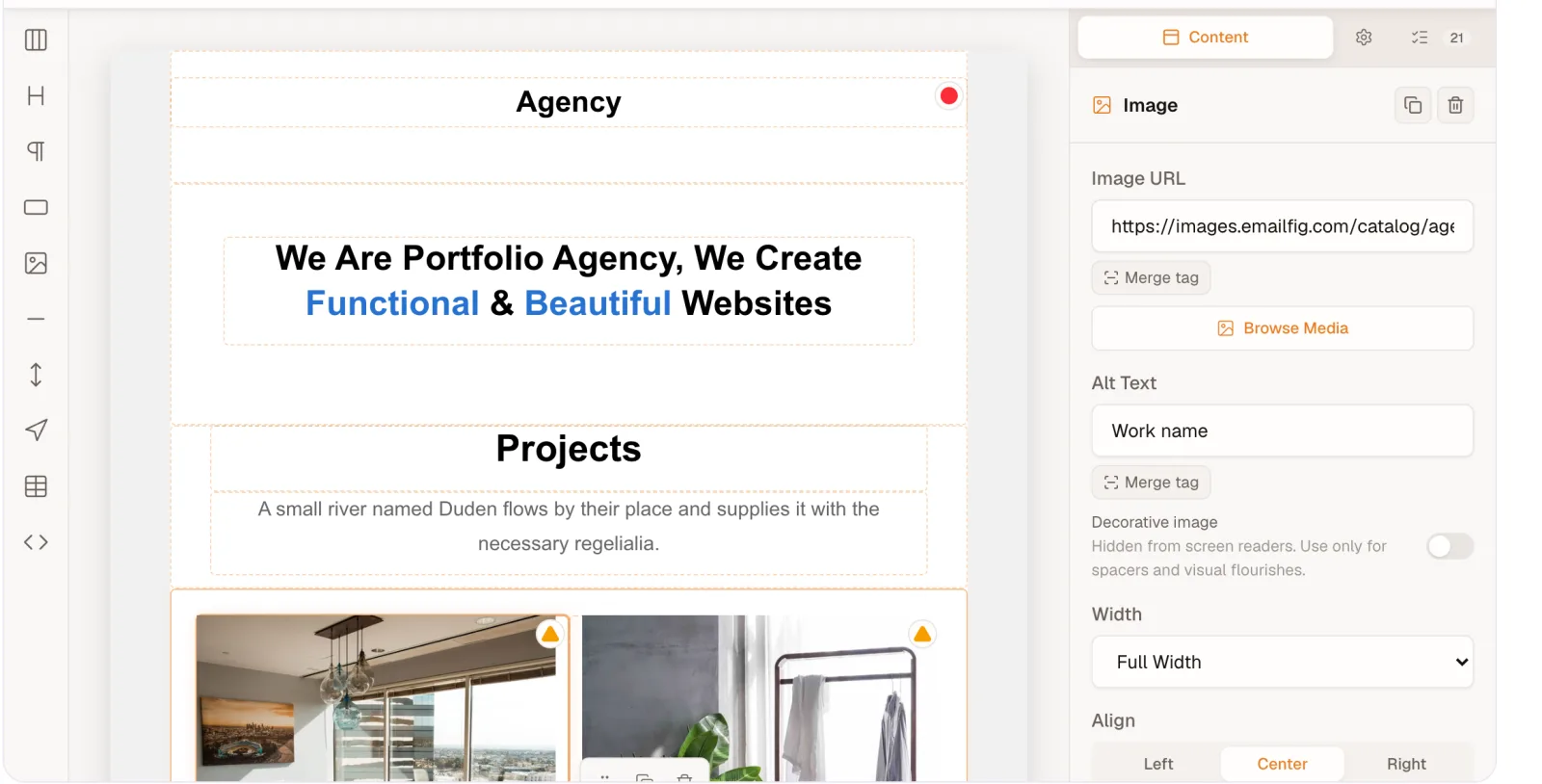
- Drag & drop editor: add an Image block, then click Choose image in its settings.
- HTML editor: put your cursor where the image should go and click Add image.
- In Choose an image, click Upload, drop files anywhere on the window, or paste a screenshot.
- Click the image you want, then Insert image.
Manage your images
Click an image in the library to open its details:
- File name: rename it so it’s easier to find with Search file names.
- Alt text: a short description shown when an inbox blocks images, and read aloud by screen readers. Many inboxes block images by default, so it’s worth filling in.
- Crop: trim the image, then click Save as a new image. The original stays as it was. Tick Fit for email to shrink a large image to a sensible size for email.
- Copy URL: copy the image’s web address, handy when you’re writing HTML by hand.
Use Sort to order the library by newest, oldest, name or file size.
To tidy up, tick one or more images and click Remove from library. Emails you’ve already sent keep showing them.
Use an image hosted somewhere else
Open Or use a link at the bottom of the library, paste the image’s address (starting https://) and click Use. EmailFig doesn’t host or resize a linked image, so if it’s moved or deleted, it stops showing in your emails.
If an upload fails
The library shows the reason next to the file name:
- PNG, JPG or GIF only. Convert the file first. WebP, HEIC and SVG aren’t accepted.
- Over the 10MB limit. Resize or compress it and try again.
Cropping a GIF saves a still image, so don’t crop one you want to keep animated.