Automation triggers and who enters
An automation starts when someone joins a list, gets a tag, or signs up through a form. Each contact enters a given automation once.
Every automation starts from one trigger, shown on the Starts when card at the top of the flow. There are three kinds:
| Trigger | Starts when |
|---|---|
| Someone joins a list | A contact is subscribed to the list: through a signup form, added by hand or with the bulk Add to list, or through the API. On a double opt-in list, it’s when they click to confirm. |
| Someone gets a tag | A tag is added by the bulk Tag action, a form, the API, or another automation’s Add a tag step |
| Someone signs up through a form | Someone completes a single opt-in form, or confirms a double opt-in one |
Because tags added by another automation count, one automation can hand people on to the next.
Set or change the trigger
- Open the automation in the builder. A draft opens there straight from the Automations list. For a live one, click Pause, then Edit.
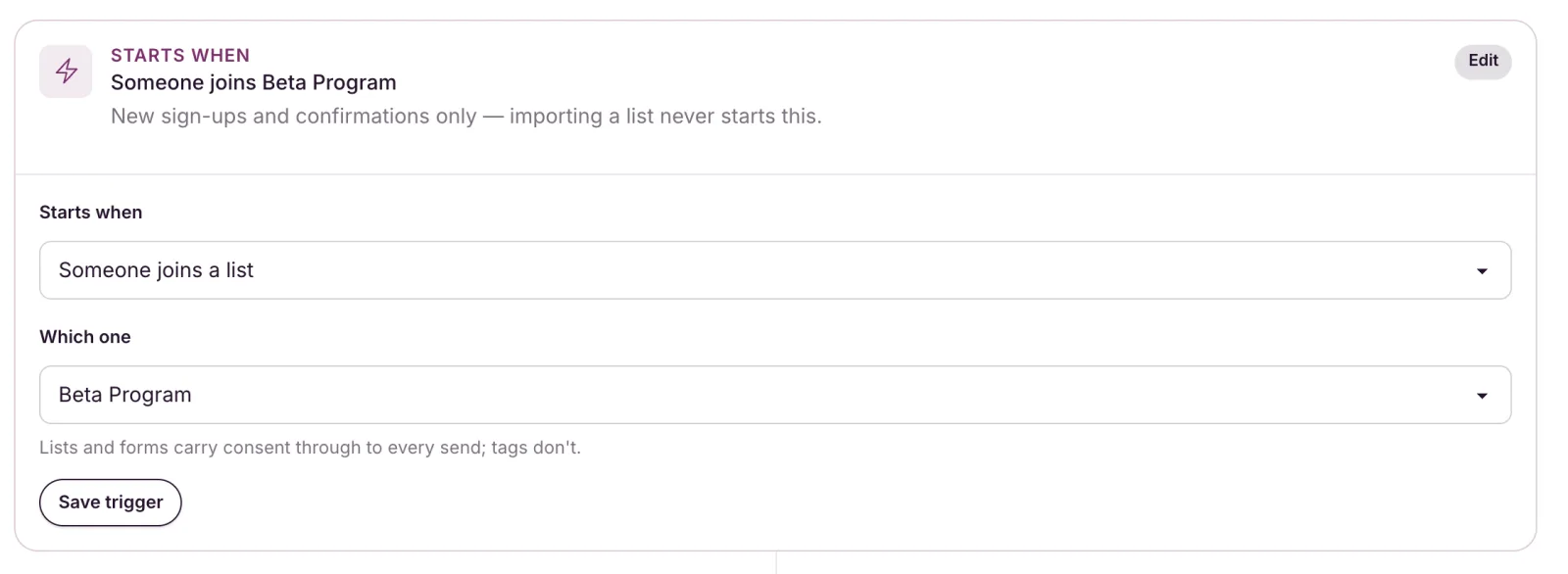
- Click the Starts when card. The trigger settings open in the panel on the right.
- Choose the kind under Starts when, then the list, tag or form under Which list?, Which tag? or Which form?.
- Click Save trigger.
You can change the kind of trigger any time the automation is a draft or paused, including one made from a recipe.
Who enters
- Each contact enters a given automation once, ever. Unsubscribing and re-subscribing, or leaving a list and rejoining, won’t start it again, so a welcome series welcomes someone once. Separate automations don’t affect each other: the same person can be in a welcome series and a win-back flow at the same time.
- Importing never starts an automation, even with a live “Someone joins a list” automation watching that list. The card says so: “New sign-ups and confirmations only. Importing a list never starts this.” To welcome people you’ve imported, send them a campaign instead.
- It has to be live at the moment it happens. Someone who joins the list or gets the tag while the automation is a draft or paused doesn’t enter, and isn’t picked up later.
- Only subscribed contacts enter. Anyone unsubscribed, bounced or marked as spam is skipped.
In a list or form automation, someone who unsubscribes from that list leaves the flow, even if they’re still on your other lists. Removing a tag doesn’t take anyone out of a tag automation.
Lists, tags and forms in use
You can’t delete a list, tag or form that a live or paused automation starts from, or a list, tag or segment one of its steps uses. The error names the automation. Archive the automation if you’re done with it, or change the step. Drafts never block a delete.