Style your form with your site's CSS
Restyle an inline form or popup from your own stylesheet: colours, fonts, sizes, icons and more.
Set your accent colour with a variable, and style the heading, fields, button and more with ::part(). Your theme’s own rules for buttons, fields and text never reach inside the form, so they can’t break it by accident.
Start with the builder. The Design tab sets Colours, fonts, Corners, the Button shape, the Field style and the layout, including One line (the email field and button side by side). Use CSS for what the builder doesn’t cover, like an icon in a field or an outline button.
Point your CSS at the form
[data-emailfig-form] selects every inline form on the page, and [data-emailfig-popup] every popup. To style just one, add its id (the frm_ part of your code):
[data-emailfig-form="frm_your-form-id"] { … }Put the CSS wherever your site keeps it: WordPress’s Additional CSS, a page builder’s custom CSS box, or your theme’s stylesheet. You don’t need !important.
The builder’s preview doesn’t show your site’s CSS, so check the result on your own page.
Recipes
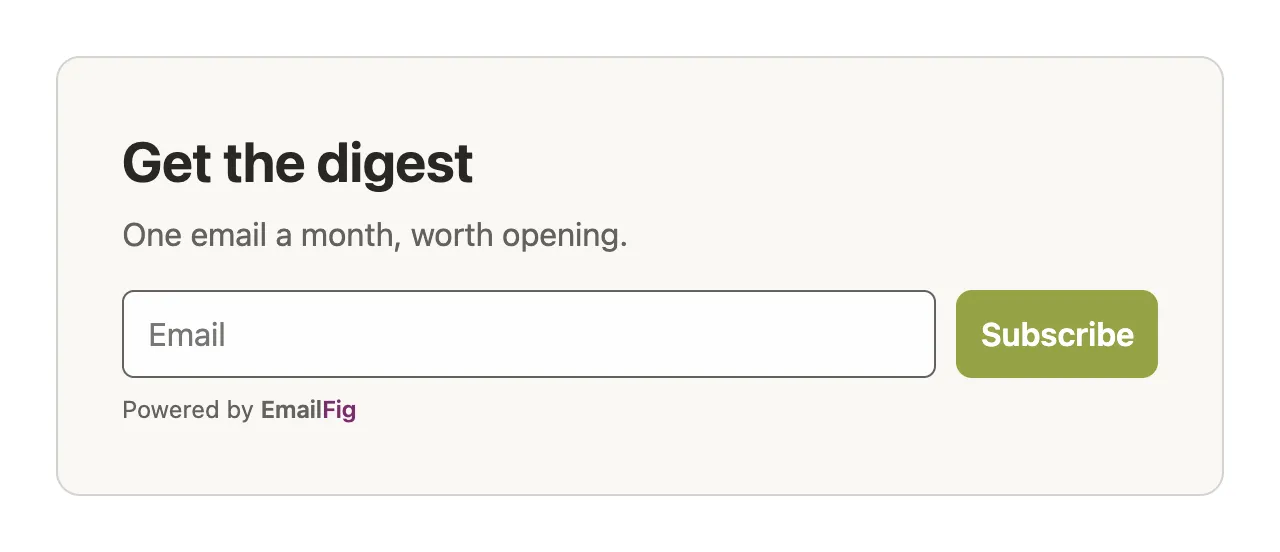
Follow your theme’s colour. Colours in the builder sets one form’s colour. To have every form follow your site instead, point --emailfig-accent (the button, focus ring and ticks) and --emailfig-accent-text (the button’s text) at your theme’s own colour variables. Anything you don’t set keeps the builder’s value.
[data-emailfig-form] {
  --emailfig-accent: var(--your-theme-colour);
  --emailfig-accent-text: #ffffff;
}
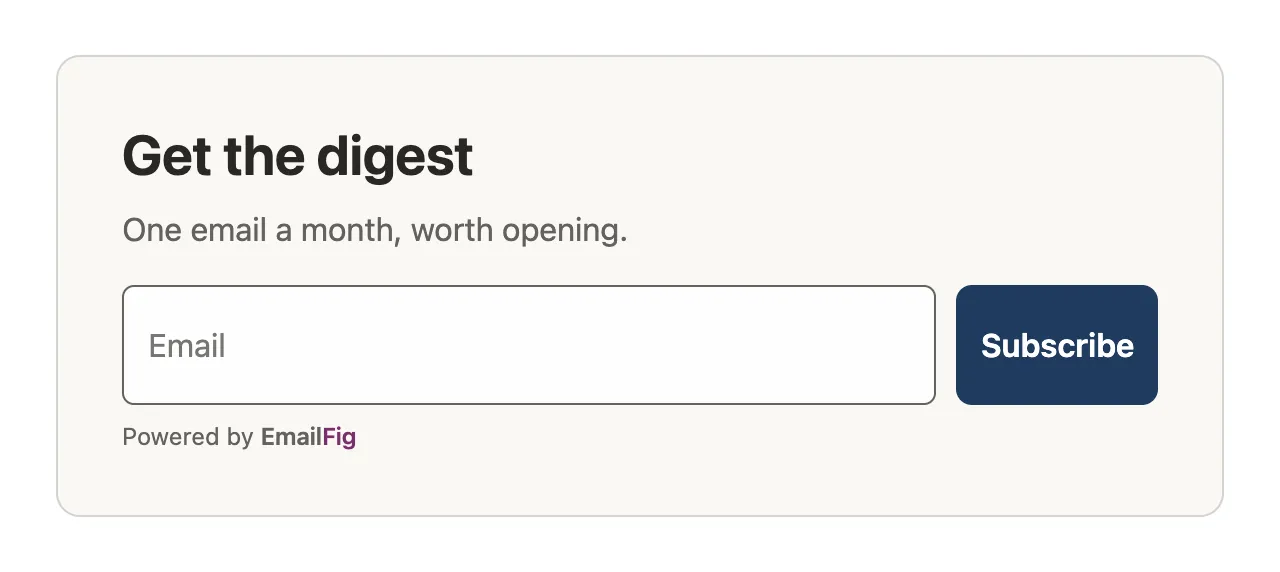
Taller fields. Set the fields and the button to the same height, so they line up on One line.
[data-emailfig-form]::part(input),
[data-emailfig-form]::part(button) {
  min-height: 60px;
}
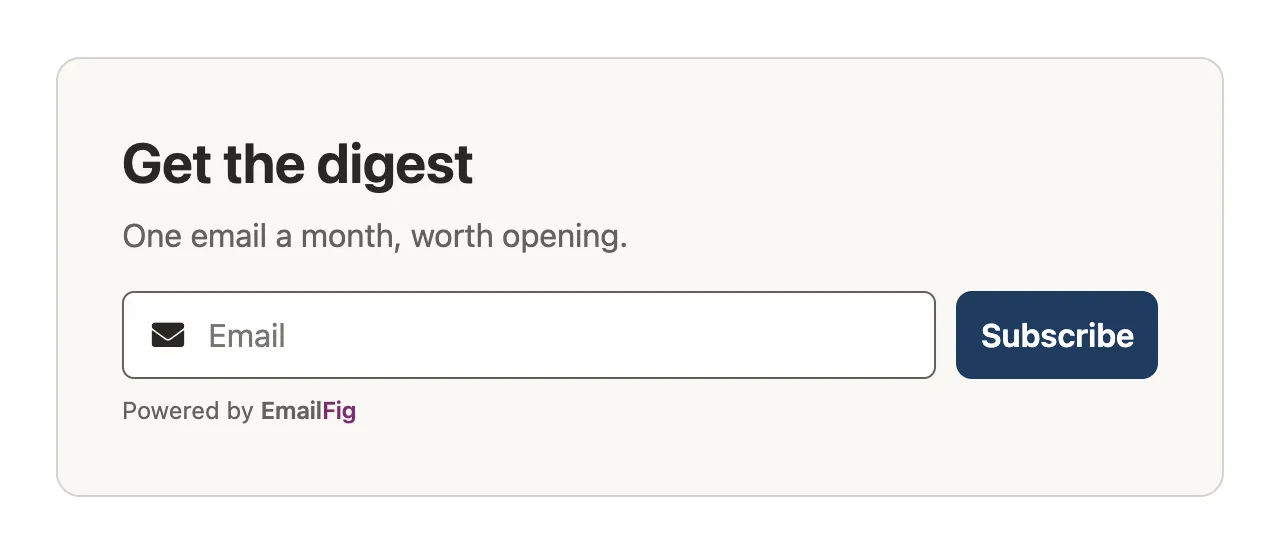
An icon in the email field of a One line form, using your site’s icon font (Font Awesome here):
[data-emailfig-form]::part(field-email) {
  position: relative;
}
[data-emailfig-form]::part(input) {
  padding-left: 42px;
}
[data-emailfig-form]::part(field-email)::before {
  content: "\f0e0";
  font-family: "Font Awesome 5 Free";
  font-weight: 900;
  position: absolute;
  left: 15px;
  top: 22px; /* half the field's height */
  transform: translateY(-50%);
}
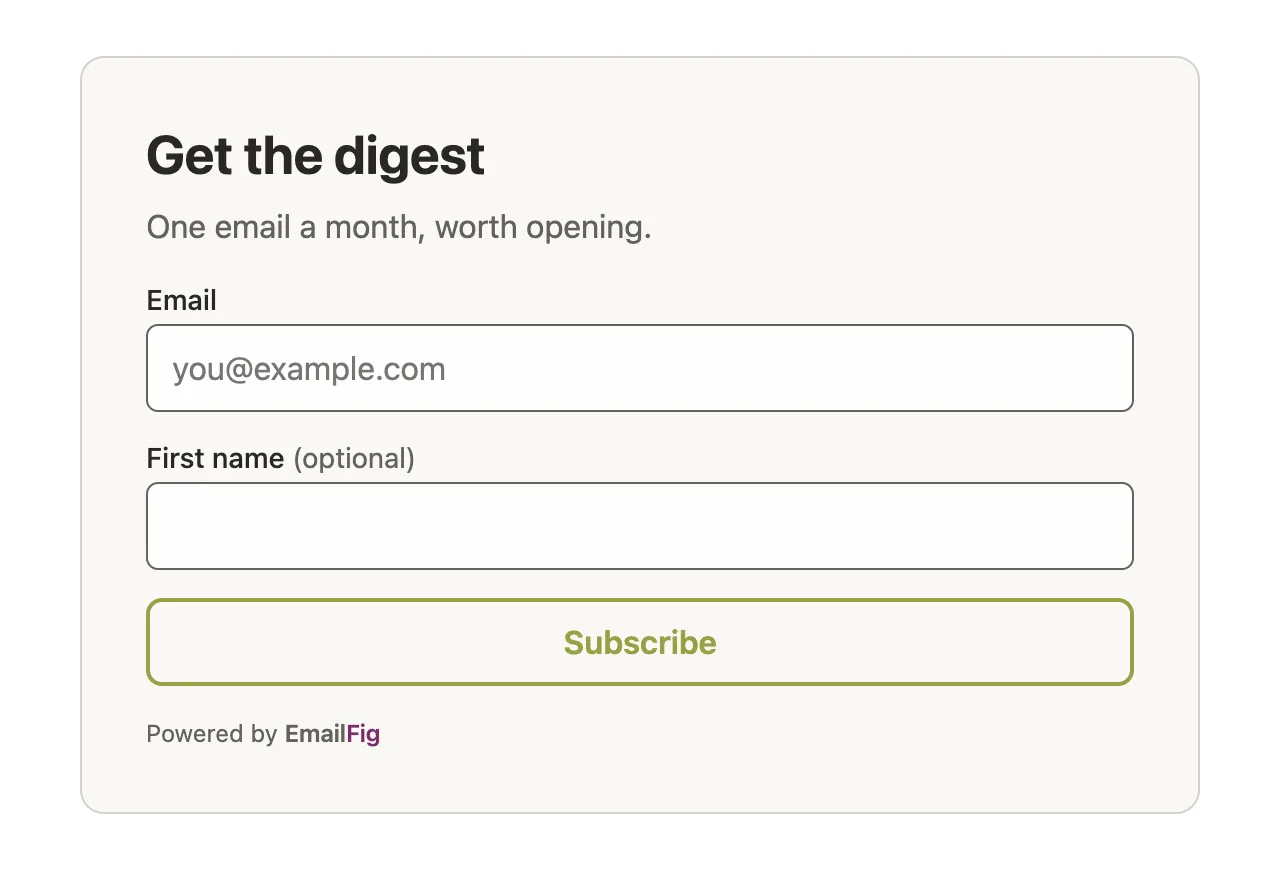
An outline button in your accent colour:
[data-emailfig-form]::part(button) {
  background: transparent;
  color: var(--emailfig-accent);
  border: 2px solid currentColor;
}
[data-emailfig-form]::part(button):hover {
  opacity: 0.8;
}
A darker backdrop behind a popup:
[data-emailfig-popup]::part(overlay) {
  background: rgb(0 0 0 / 0.7);
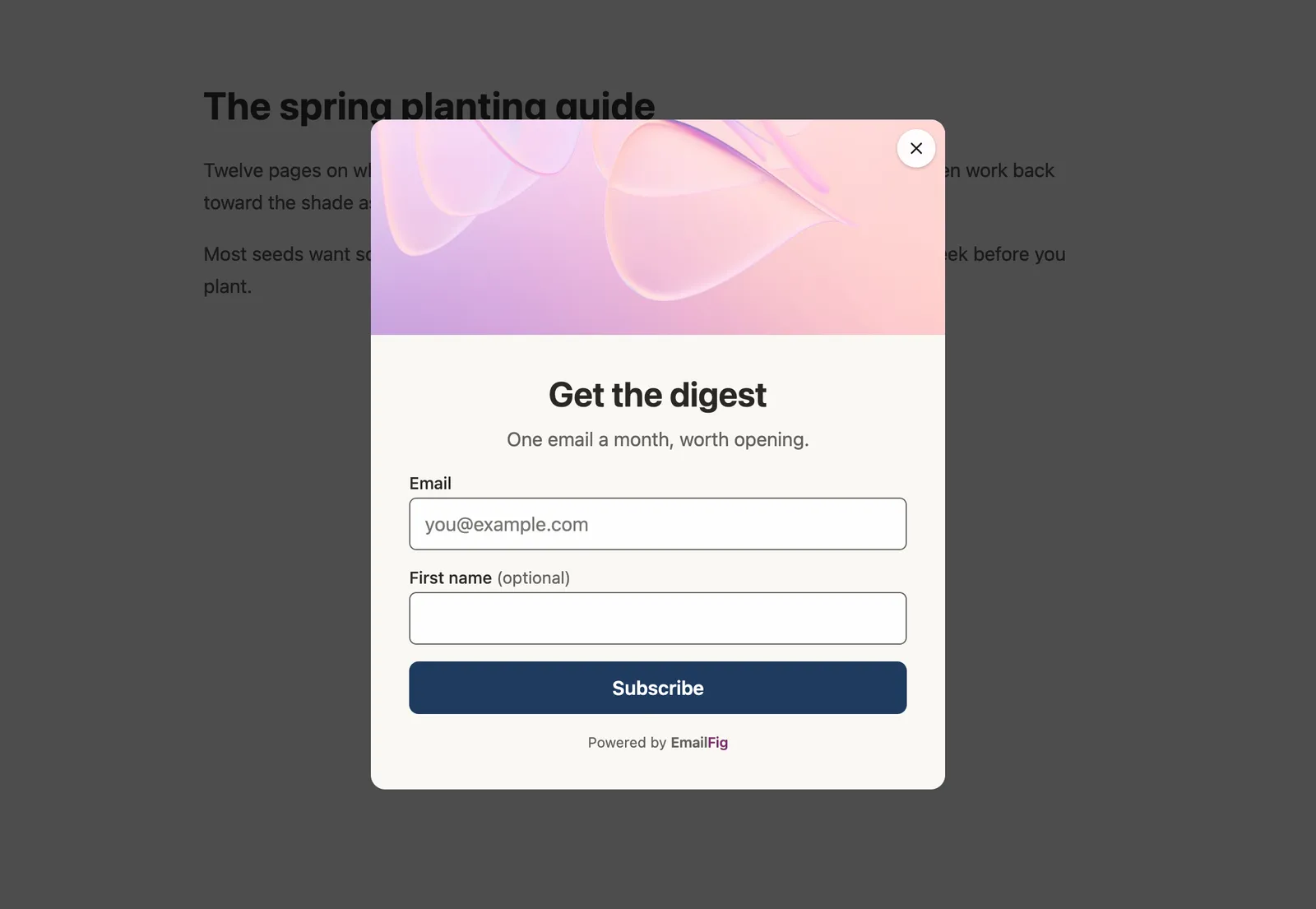
}
Parts
Style any of these with ::part(name). States like :hover, :focus-visible and :checked work too, as do ::before, ::after and ::placeholder. The button is :disabled while a signup is sending.
container: the whole form, card includedimage: the photoheading: the heading, and the heading after signupdescription: the description, and the message after signupform: the fields and button togetherfield: each field, with its label and errorfield-<key>: one field, likefield-email,field-first_name, orfield-plus your custom field’s keylabel: the label above a fieldinput: text boxes and dropdownsselect: dropdowns onlycheckbox: tick boxesinterests: the interests pickerconsent: the consent tick and its texterror: error messagesbutton: the subscribe buttonafter-signup: what shows after someone signs upoverlay: a popup’s backdropdialog: a popup’s boxclose: a popup’s close button
What CSS can’t reach
- Inside a part.
::part(form) inputdoesn’t work. Style theinputpart instead. - Position-based selectors.
:nth-child,:first-childand:hasdon’t apply to parts. - Layout. Where the photo sits and whether fields stack are set on the Design tab, under Layout.