Switching a campaign's template replaces its content
Choosing a different template for a campaign overwrites what you've written. EmailFig asks first, but there's no undo.
Choosing a different template for a campaign replaces the campaign’s whole email, not only its design. EmailFig asks first, but once you confirm, the old content can’t be brought back.
When you apply a template, the campaign gets its own copy. Editing the template later doesn’t change the campaign.
On the campaign’s Template step, if the campaign already has a template or any content, clicking Use template asks:
Switch to this layout? This replaces the current content.
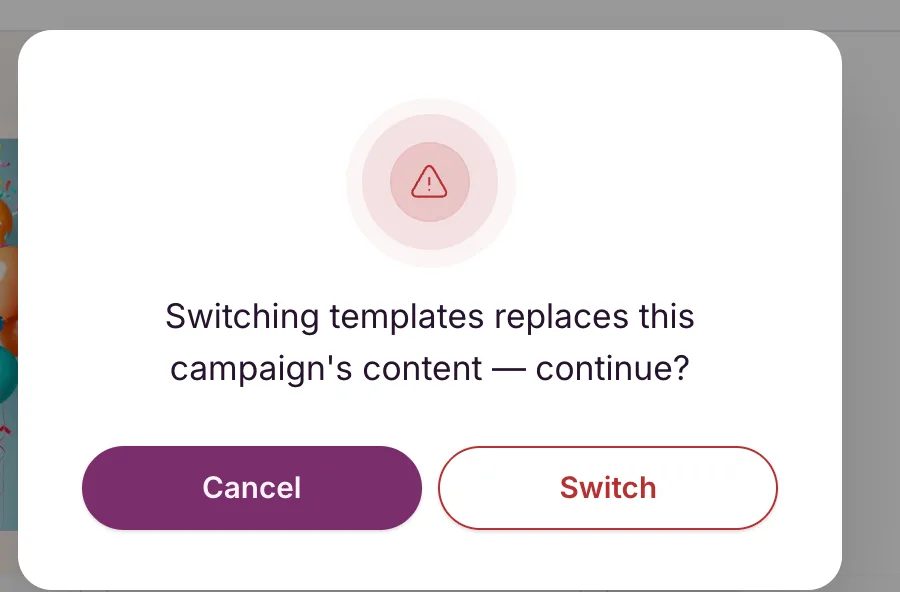
Click Switch to replace the content, or Cancel to keep it. The template you’re already using shows In use instead of a button.
Starting from scratch with Drag & drop or HTML on the same step does the same, with its own warning: Start over with a blank campaign? This replaces the current content.
Automation emails work the same way.
Keep a copy first
Not sure? Before you switch, go to the Review step and click Save as template. Your current email is then safe in Templates whatever happens to the campaign. See Save and manage your templates.