See who clicked a specific link
The Top links clicked card ranks every link in a campaign by how many people clicked it, and how many clicks it got in total.
Open a sent campaign’s report and look at the Top links clicked card in the sidebar. It lists every link in your email that got clicked, ranked by unique clickers (how many different people clicked it at least once), with the total click count (including repeat clicks from the same person) underneath each one.
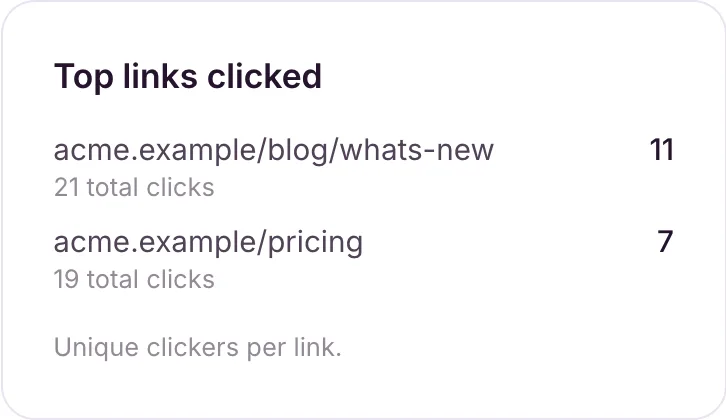
This is a per-link performance table, not a list of who clicked what. EmailFig tells you how many people clicked each link, not which recipient clicked which one.
“Unknown link”
A click EmailFig couldn’t match to a link in your content (usually a broken link or one not set up for tracking) still counts towards your overall click totals. It shows up as its own Unknown link row rather than disappearing.
What’s never in this list
Your email’s unsubscribe link and its “view in browser” link are left out of click tracking on purpose, so clicking unsubscribe never inflates a link’s count.
Finding out whether one person clicked anything
The Top links card only gives totals. To check whether a specific recipient clicked anything, use the Clicked column on the campaign’s recipient list (see Recipient activity and CSV export).